

Introducing Tournament Mode (Beta)
Sprint Vector Patch Notes — June 7, 2018
Aggregated from Steam, cross-tracked with Battle.net coverage on GamePatchNote.
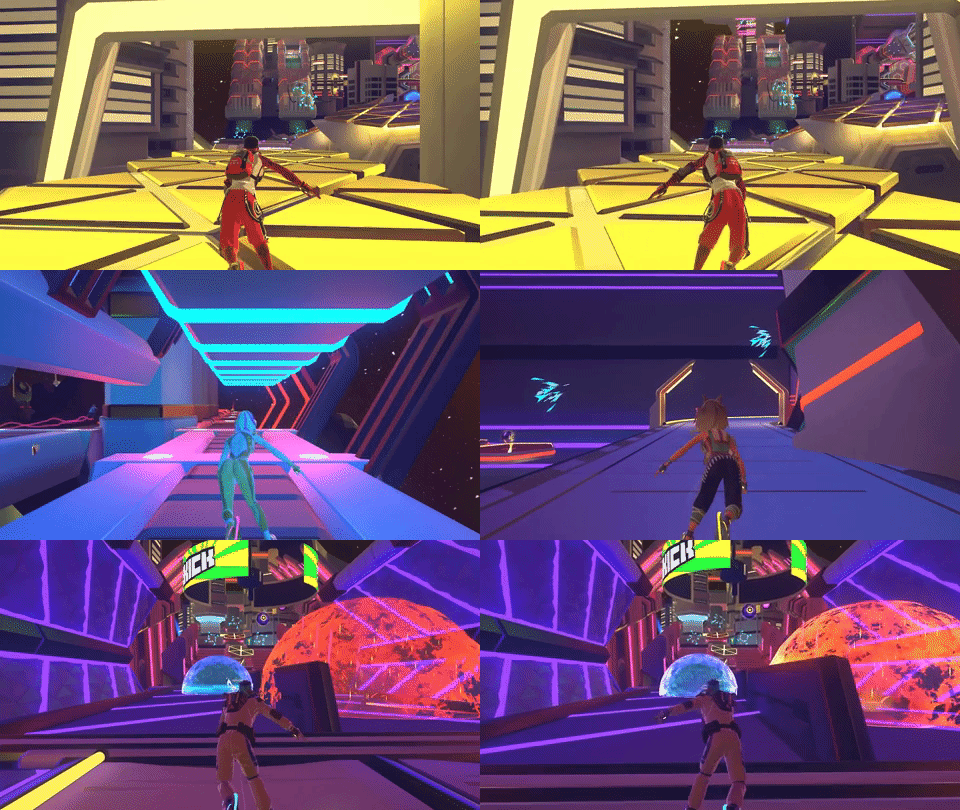
For everyone who's wanted to host a Sprint Vector tournament at their home, school, or arcade, we've got good news: we've just added in a new LAN-based Tournament Mode (beta) that can support up to eight active racers and three spectators. Here's a guide for how to access it:
Overview
The Tournament Mode Build is a beta version of Sprint Vector that contains the following additional features:
- LAN Mode - LAN Mode allows players to connect to each other over a Local Area Network (LAN), with one user acting as the “Host” and additional users acting as “Client.” LAN Mode supports up to eight active racers and three spectators.
- Spectator Mode (LAN Only) - Spectator Mode allows a player to connect to a race (via LAN) as a “Spectator,” who can cycle through each racer’s camera and a third-person view to watch the race.
Accessing the Tournament Mode Build (BETA)
- Find Sprint Vector in your Steam Library under VR.
- Right-click Sprint Vector and select PROPERTIES.
- Click the BETAS tab at the top of the menu.
- Under the field that says “Select the beta you would like to opt into,” select “tournament-mode - LAN Mode + Spectator Mode (BETA)” from the drop-down menu.
- Click the Close button on the PROPERTIES menu (no code is required). The entry for Sprint Vector in your Steam Library should now read “Sprint Vector .”
- Launch Sprint Vector through Steam. On launch, the player will be presented with three options:
- Launch Sprint Vector in Steam VR Mode.
- Launch LAN-only Sprint Vector in Steam VR Mode.
- Launch Spectator client for LAN games in Steam VR Mode.
- Launch Sprint Vector in Steam VR Mode.
- Select the Launch Option for your desired version of Sprint Vector.
Instructions for Beta Launch Options
Launch Sprint Vector in Steam VR Mode
Launching this Beta version of Sprint Vector in Steam VR Mode will launch the standard version of Sprint Vector. However, users will not be able to access their save data from the main game, nor will they be able to connect to a multiplayer server. Survios strongly recommends that if you do not wish to use the LAN or Spectator modes that you access the main game through the main branch and not this beta version.
Launch LAN-only Sprint Vector in Steam VR Mode
Launching LAN-only Sprint Vector in Steam VR Mode will launch Sprint Vector in LAN mode. When playing through LAN mode, the Multiplayer tab in the main menu is replaced with a server browser though which players can either choose to host a game or select a server on their LAN to join. Please note that LAN mode only supports multiplayer games. Survios strongly discourages you from playing single-player races in LAN mode.
Launch Spectator client for LAN games in Steam VR Mode
Launching Sprint Vector in Spectator Mode will launch Sprint Vector as a 2D desktop application rather than a 3D VR application. In addition to the game window, an additional window will launch called the “Admin Panel.” From the Admin Panel, players can select a server to join (LAN only), adjust video and audio settings, and quit the application.
SPECTATOR CONTROLS:
- : Toggle Admin Panel
- [+]/[-]: Cycle Racer View
- [1]-[8]: Change Racer View by Position
- : Cycle Camera Modes
- : Third Person Camera
- : Tracking Camera
- : Free Camera
Known Issues:
Map Thumbnail Issue - In multiplayer LAN races, when selecting a new map to race on from the completion screen at the end of the race, the thumbnail icons for the selected course will not update for the Host. The intended course will still load properly, and this issue will not be replicated on clients.
Single Player Saves - Single player saves are not supported in LAN or Spectator Mode.
Host Black Screen - When playing in a multiplayer race in LAN mode, there is a very rare chance that the host of the multiplayer match will sit in a black screen upon finishing the race. If this occurs, the player should wait for a new match to load, at which point they should no longer be experiencing a black screen.
Support
Experiencing technical issues? Contact [email protected] for help!